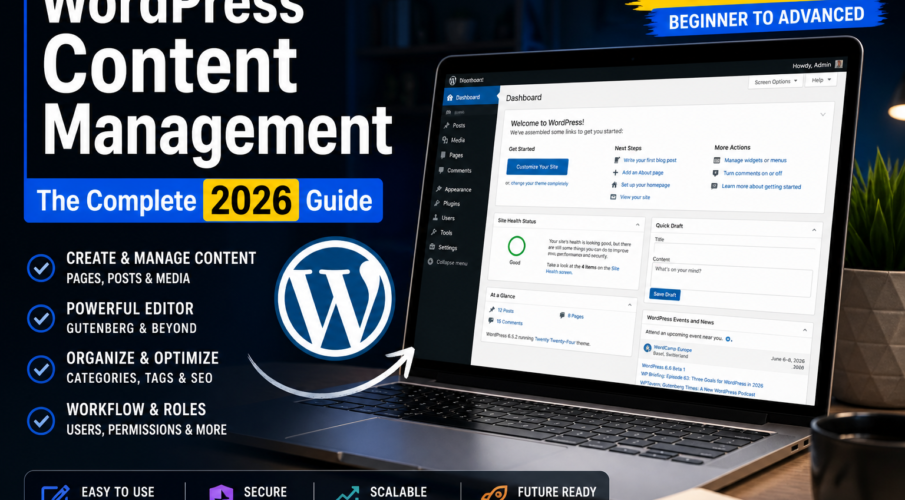
WordPress Content Management | The Complete 2026 Guide
WordPress powers more than 43 percent of every website on the internet. That number sounds impressive until you realize it also means millions of sites are being run by people who are piecing things together as they go — hitting walls they cannot explain, making configuration choices they do not fully understand, and wondering why managing content feels harder than it should.
This guide changes that.
Whether you are setting up your first WordPress site, migrating from another web publishing platform, or trying to get more control over how content is structured, published, and maintained — this is the reference you need. No filler. No fluff. Just a clear, honest look at how WordPress content management works and how to do it well.

What WordPress Content Management Actually Means
The phrase gets used loosely, so it is worth being precise. WordPress content management refers to the full system of creating, organizing, delivering, and maintaining content on a WordPress-powered website. That includes:
- How content is entered and structured in the backend
- How it is stored and retrieved from the database
- How it is displayed to visitors using themes and templates
- How plugins extend or modify that entire pipeline
- How site administrators maintain, update, and scale the system over time
WordPress is an open-source content management system, which means its core code is publicly available, free to use, and continuously maintained by a global community of contributors. That open-source foundation is one of the biggest reasons it has scaled to where it is today — but it also means the quality of any given WordPress setup depends heavily on the decisions made by whoever configured it.
This is not a platform that runs itself. It rewards users who understand its architecture.
The WordPress Dashboard: Your Central Command
Everything in WordPress flows through the WordPress dashboard. This backend user interface is where you manage content, configure settings, install plugins, activate themes, and monitor your site. If you are new to it, here is how to think about the key sections.
Posts vs. Pages
Posts are time-stamped, categorized content entries — the standard format for blogs, news, and editorial content. Pages are static, non-chronological content structures designed for things like About pages, service listings, or contact forms. Understanding which to use — and when — is one of the most basic but consequential content architecture decisions you will make.
The Editor: Classic vs. Block
WordPress now uses the Gutenberg block editor by default. This replaces the older Classic Editor with a modular content-building system where text, images, buttons, galleries, and custom components are each treated as individual, moveable blocks. The result is a more visual, flexible editing experience — but it comes with a learning curve, and not every third-party plugin or theme is fully compatible with it.
If you are managing a site built before 2019, or if you have team members accustomed to the older interface, the Classic Editor plugin remains a widely supported option.
Media Library
All uploaded images, PDFs, videos, and other files are stored in the Media Library. This seems straightforward until you are managing a site with thousands of assets and no naming convention. Good media hygiene — consistent file naming, alt text on every image, and periodic library audits — saves hours of frustration later.
Dashboard Configuration Settings
The Settings menu controls everything from your site URL and tagline to how comments behave, what date format is used, and how many posts appear per page. These are foundational WordPress dashboard configuration choices. Most site owners set them once and forget they exist — but returning to them after a plugin installation or theme change is often where bugs get caught.
How WordPress Stores Content: The Database Layer
Every piece of content you create in WordPress — posts, pages, settings, user data, plugin configurations — gets stored in a MySQL or MariaDB database. Understanding this database management system layer is not just for developers. Site owners benefit from knowing the basics.
The Core Database Tables
WordPress uses a set of core tables prefixed by wp_ (or a custom prefix you set during installation). The most important ones include:
- wp_posts: Stores all posts, pages, custom post types, and revisions
- wp_postmeta: Stores additional metadata attached to any post
- wp_options: Stores site-wide settings and plugin configuration data
- wp_users and wp_usermeta: Handle all user account information
Plugin bloat often shows up here. Plugins that do not clean up after themselves leave behind rows in these tables long after the plugin has been deactivated or deleted. Over time, this slows query performance and inflates your database size.
Why Database Health Matters for Content Performance
Slow page load times are often blamed on themes or hosting, but the database is frequently the culprit. Running regular database optimizations — clearing post revisions, cleaning transients, and removing orphaned metadata — keeps query response times fast. Plugins like WP-Optimize or tools available through managed hosting providers can automate this.
If your site has a search function, users are also querying the database directly. A bloated or unindexed database makes WordPress search painfully slow. Third-party search solutions like Elasticsearch integrations are worth considering for content-heavy sites.
WordPress Content Architecture: Structuring What You Build
Content architecture design refers to how content is organized, categorized, and connected across your site. In WordPress, this means thinking deliberately about custom post types, taxonomies, and metadata structures.
Custom Post Types
By default, WordPress gives you posts and pages. But the platform also supports custom post types — which let you create entirely new content structures tailored to your site’s needs. A real estate site might have a Listings post type. A portfolio site might have a Projects type. An online course platform might have Lessons and Modules.
Custom post types are registered either through a plugin like Custom Post Type UI or directly in code via functions.php. Either way, they should be planned before you start building, not bolted on after your content library has grown.
Taxonomies: Categories and Tags Done Right
WordPress has two default taxonomies: categories and tags. Categories are hierarchical (you can have parent and child categories). Tags are flat and descriptive. Both are searchable and create archive pages by default.
The mistake most site owners make is using both without a clear strategy, ending up with redundant taxonomies that confuse visitors and dilute the authority of any given URL. Pick a taxonomy structure intentionally and stick to it.
Custom Fields and Metadata
Custom fields let you attach structured data to any post or page — things like review scores, event dates, pricing information, or product specifications. This metadata is stored in the wp_postmeta table and can be displayed anywhere in your theme templates.
For sites that rely heavily on custom fields, Advanced Custom Fields (ACF) is the standard tool. It offers a clean UI for creating and managing field groups without writing code, and its Pro version supports repeater fields, flexible content layouts, and relationship fields between post types.
Theme Framework Management: How Your Site Looks and Behaves
Your WordPress theme controls the visual presentation of your content. But calling it a design decision understates its significance. Your theme also determines template structure, layout logic, mobile responsiveness, and how deeply WordPress core and your plugins integrate with the frontend.
Theme Frameworks vs. Page Builders
A theme framework is a foundational theme built to support child themes and extensibility — examples include Genesis, Kadence, or GeneratePress. These tend to be lightweight, well-coded, and developer-friendly.
Page builders like Elementor, Divi, or Beaver Builder take a different approach: they provide drag-and-drop visual editing directly on the frontend. They are accessible to non-developers and powerful for marketing teams, but they add code complexity, can slow page loads if misconfigured, and create vendor dependency that makes theme switching harder later.
Neither approach is universally better. The right choice depends on who is managing the site and what the content workflows require.
Child Themes and Update Safety
If you are customizing a theme — changing any template files, style rules, or PHP functions — you should be doing it in a child theme. A child theme inherits everything from the parent but stores your changes separately. When the parent theme updates, your customizations stay intact.
Skipping this step is one of the most common causes of lost customizations during theme updates.
Plugin Ecosystem Integration: Extending WordPress the Right Way
The WordPress plugin ecosystem is one of the platform’s greatest strengths and, when managed poorly, one of its biggest liabilities. There are more than 59,000 plugins in the official repository, covering everything from SEO optimization to e-commerce, membership management, security hardening, and performance tuning.
What to Look for Before Installing a Plugin
Not every plugin is worth installing. Before adding anything to your site, evaluate:
- Active installation count: Higher numbers generally indicate wider trust
- Last updated date: Plugins not updated in 12+ months carry compatibility and security risk
- Support response rate: Check the plugin’s support forum to see if the developer is responsive
- Compatibility rating with your current WordPress version
- Ratings and patterns in reviews — one negative review means little, but patterns matter
Plugin Conflicts and Bloat
Every plugin you install adds code that loads on every page request. Some plugins run efficiently. Others do not. Plugin conflicts happen when two plugins try to modify the same functionality or load conflicting JavaScript libraries. These conflicts can break forms, shopping carts, menus, or entire pages.
The standard diagnostic for plugin conflicts is to deactivate all plugins and reactivate them one at a time while testing the problem behavior. It is tedious but reliable. Keeping your plugin count lean — only what your site genuinely needs — reduces both performance overhead and conflict risk.
Essential Plugin Categories for Serious WordPress Sites
Most professionally managed WordPress sites rely on plugins across a few key categories:
- SEO: Yoast SEO or Rank Math for on-page optimization, sitemaps, and schema markup
- Security: Wordfence or Solid Security for firewall rules, login protection, and malware scanning
- Performance: WP Rocket, LiteSpeed Cache, or W3 Total Cache for caching and asset optimization
- Backup: UpdraftPlus or BlogVault for automated, off-site backups
- Forms: Gravity Forms or WPForms for lead capture, contact forms, and conditional logic
Dynamic Content Delivery: How WordPress Serves Pages
When a visitor lands on a WordPress page, the platform does not serve a static HTML file. It queries the database, applies template logic, assembles the page, and delivers it — all in real time. This is what makes WordPress a dynamic content delivery system, and it is also why performance optimization matters so much.
The WordPress Template Hierarchy
WordPress uses a template hierarchy to determine which theme template file handles any given URL. A request for a category archive might use category-{slug}.php, or fall back to category.php, then archive.php, then index.php — whichever exists first in the theme.
Understanding this hierarchy lets you create highly targeted templates for specific content types, categories, or individual pages without overriding the entire theme. It is one of the most underused tools available to WordPress site builders.
Caching and Performance
Because WordPress assembles pages dynamically, caching is essential for any site that cares about speed. A caching plugin stores pre-built versions of your pages so repeat visitors — and search engine crawlers — receive a fast, cached response instead of triggering a fresh database query.
Page caching is the baseline. Beyond that, object caching (using Redis or Memcached) and browser caching further reduce load times. A well-configured caching stack can cut page load times dramatically, which matters both for user experience and search engine rankings.
Website Administration Tools: Managing a WordPress Site at Scale
Running a small blog and managing a multi-author publication or a high-traffic business site are very different challenges. WordPress has built-in tools and third-party options that make website administration more manageable at scale.
User Roles and Permissions
WordPress has five default user roles: Administrator, Editor, Author, Contributor, and Subscriber. Each role has a specific set of capabilities that determine what that user can see and do in the dashboard.
For sites with multiple contributors, getting this right matters. Editors can publish and manage all posts. Authors can only publish their own. Contributors can write and submit but cannot publish without editorial approval. Assigning roles thoughtfully is a basic content governance step that many sites skip.
Multisite and Network Management
WordPress Multisite lets you run a network of sites from a single WordPress installation, with a shared codebase, user database, and set of plugins and themes. It is used by universities, media companies, and large organizations that need to manage many related sites without managing entirely separate installations.
Multisite is powerful but adds complexity. Plugin and theme compatibility is narrower, debugging is harder, and network-level decisions affect all sites. It is not the right choice for every situation.
Site Maintenance Protocols
A WordPress site requires ongoing attention. Site maintenance protocols should include:
- WordPress core updates: Applied promptly, especially security releases
- Plugin and theme updates: Tested in a staging environment before applying to production
- Backups: Automated daily backups stored off-site, tested periodically for restore integrity
- Security scans: Regular scans for malware, unauthorized file changes, and vulnerable plugin versions
- Database optimization: Monthly cleanup of revisions, transients, and orphaned data
- Uptime monitoring: A third-party tool that alerts you if the site goes down
Skipping any of these is not a risk-free decision — it is a delayed cost. Sites without reliable backups lose data. Sites without updates get compromised. Sites without monitoring stay down longer than they should.
WordPress as a Digital Experience Platform
WordPress has evolved well beyond its blog origins. For many businesses, it now serves as a full digital experience platform — handling e-commerce, membership portals, LMS functionality, multilingual sites, and complex content workflows that would have required custom development a decade ago.
Headless WordPress
Headless WordPress decouples the backend content management system from the frontend presentation layer. The WordPress dashboard and database handle content creation and storage, while a JavaScript framework — React, Next.js, Gatsby — handles rendering. Content is delivered via the WordPress REST API or GraphQL.
This architecture offers significant performance advantages and full control over the frontend experience. The trade-off is complexity: you need developers comfortable with both WordPress and modern JavaScript frameworks. For most small to mid-sized sites, traditional WordPress remains the more practical choice.
WooCommerce and E-Commerce Content Management
WooCommerce is the leading e-commerce plugin for WordPress, turning any site into a fully functional online store. It introduces its own content types (Products, Orders, Coupons), its own taxonomy system (Product Categories, Tags, Attributes), and its own settings layer that sits alongside WordPress core.
Managing a WooCommerce store adds meaningful complexity to the standard WordPress content management workflow. Product data, inventory, pricing, and customer records all need to be maintained. Performance requirements are higher. Security is more critical.
Content Workflows and Editorial Systems
WordPress does not ship with a robust editorial calendar or content workflow system out of the box. For solo bloggers, that is fine. For teams, it creates gaps.
Editorial Plugins Worth Knowing
Several plugins address the workflow gap. Editorial Calendar and CoSchedule integrate with WordPress to provide visual content planning. PublishPress adds editorial workflows, comment and review systems, and content statuses beyond the default Draft / Published / Pending Review options. For teams managing high content volume, these tools reduce the friction of coordinating between writers, editors, and publishers.
Content Revisions and Version Control
WordPress stores revisions for every post and page automatically. This is useful for recovering accidentally deleted content or reverting an unwanted edit. But revisions accumulate fast and bloat your database over time.
Set a revision limit in your wp-config.php file:
define( ‘WP_POST_REVISIONS’, 5 );
This keeps the five most recent revisions for any post and discards older ones automatically. Adjust the number based on your editorial process.
Choosing the Right Hosting for WordPress Content Management
WordPress hosting is not a commodity decision — it is a performance and reliability decision. The wrong host creates bottlenecks that no amount of optimization can fully overcome.
Hosting Tiers and What They Mean
Shared hosting puts your site on a server with thousands of others. It is inexpensive and suitable for low-traffic sites, but resources are shared, and a traffic spike on a neighboring site can slow yours.
Managed WordPress hosting — providers like Kinsta, WP Engine, or Flywheel — handles server configuration, caching, backups, and updates for you. The cost is higher, but the infrastructure is optimized specifically for WordPress and the operational overhead is lower.
VPS and cloud hosting options (DigitalOcean, Cloudways, AWS) offer more control and better performance than shared hosting, but they require more technical management.
What to Prioritize in a WordPress Host
- PHP version support: WordPress performs best on PHP 8.1 or newer
- Server-level caching: Redis or Memcached dramatically reduces database load
- Automatic daily backups with one-click restore
- Staging environments: Essential for testing updates before they go live
- SSL/TLS management and renewal
- Technical support quality: Especially relevant when something breaks at 2am
Frequently Asked Questions
What is the difference between WordPress.com and WordPress.org?
WordPress.org is the self-hosted, open-source version of WordPress. You download the software, install it on your own hosting, and have full control over your site, plugins, themes, and data. WordPress.com is a commercial hosting platform built on WordPress software. It is easier to get started with but imposes limitations on plugins, theme customization, and monetization depending on your plan. For most business use cases, WordPress.org is the right choice.
How many plugins is too many?
There is no fixed number — a site with 30 lightweight, well-coded plugins may perform better than one with 10 bloated ones. The real question is whether each plugin earns its place. Audit your plugin list periodically and remove anything that duplicates functionality or is no longer actively maintained.
Is WordPress secure?
WordPress core is maintained by a dedicated security team and released with regular patches. The greater risk comes from outdated plugins, weak passwords, inadequate hosting security, and poor configuration decisions. Sites that follow standard security practices — strong credentials, limited login attempts, up-to-date software, and a security plugin — are reasonably well protected.
What is a custom post type and do I need one?
A custom post type is a distinct content structure beyond default posts and pages. If your site has a category of content that needs its own set of fields, its own archive page, and its own editorial workflow — products, events, team members, case studies — a custom post type is probably the right tool. If you are just organizing blog posts differently, categories and tags are sufficient.
How do I speed up my WordPress site?
Start with hosting quality — no optimization layer compensates for an underpowered server. Then install a caching plugin, optimize images, minimize plugin count, enable a content delivery network (CDN), and use a lightweight theme. Tools like GTmetrix and Google PageSpeed Insights help you identify what is slowing things down.
What is headless WordPress?
Headless WordPress separates the backend CMS from the frontend display layer. WordPress manages and stores content, and a JavaScript framework handles rendering. It delivers fast, highly customized frontend experiences but requires developer expertise in both WordPress and modern frontend frameworks. It is best suited for teams with dedicated development resources.
Conclusion: Managing WordPress With Intention
WordPress is not a set-it-and-forget-it platform. It rewards the people who understand how it works — who know the difference between a theme file and a plugin function, who keep their database clean, who make deliberate decisions about content architecture before building instead of trying to fix structural problems after the fact.
The good news is that this understanding is learnable. The platform is well-documented, the community is enormous, and most problems have been solved and written about many times. What separates a well-run WordPress site from a frustrating one is usually not talent — it is intention.
Start with clarity about what your site needs to do. Build a content architecture that fits that purpose. Choose plugins and themes that serve the goal rather than adding complexity. Maintain the system consistently. And revisit your decisions as the site grows.
WordPress content management done well is not complicated. It just requires paying attention to the right things.